Status Check
NSFAS Status Check Portal Issues – Fixes for Login, Loading and Error Problems
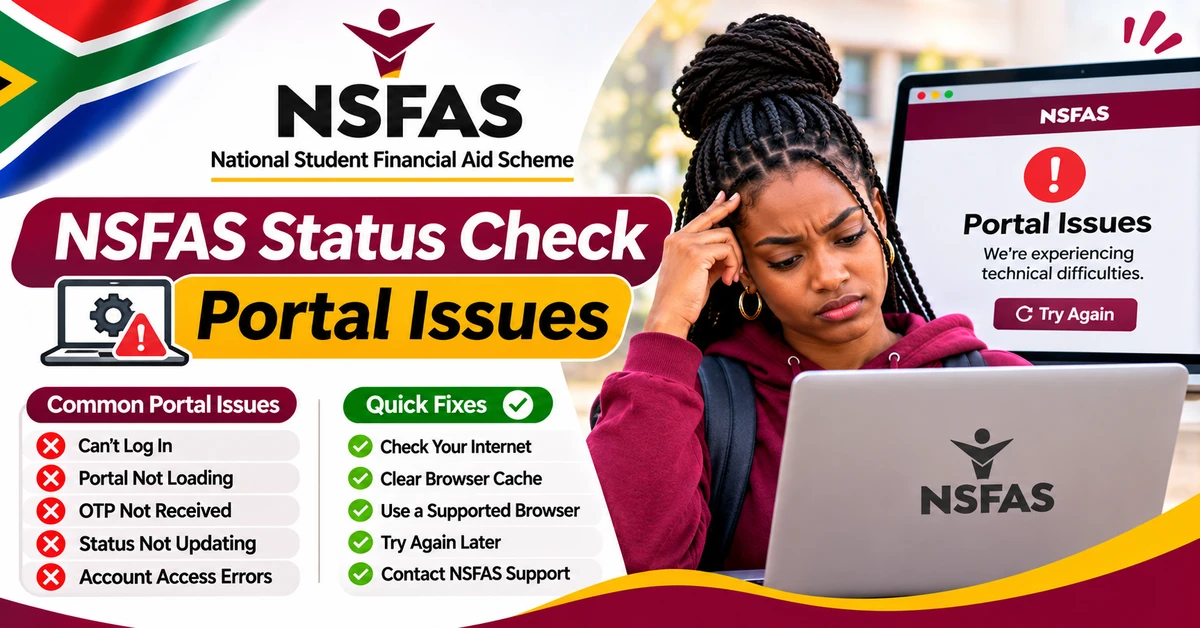
Few things are more frustrating than needing to check your NSFAS status and finding that the portal will not let you in, will not load, or shows an error at the worst possible moment. Most portal problems fall into a small number of patterns, and many of them can be fixed with careful, step-by-step troubleshooting. Others are caused by high traffic or by information that NSFAS or your institution still needs to confirm, and in those cases patience and the right follow-up matter more than repeatedly retrying the same login.
This guide works through the most common myNSFAS portal issues, explains what is likely causing each one, and gives practical fixes you can try safely. It does not ask you to share your password with anyone, and it does not give contact numbers or codes. For official contact channels, always use the details listed on the official NSFAS website.
Start Safely: Use Only the Official Portal
Before troubleshooting, make sure you are using the genuine portal. Start from the official NSFAS website and follow its link to myNSFAS, rather than clicking a link in a message, an email, or a social media post. Fake pages that imitate the NSFAS portal are a real scam risk, and they are designed to steal login details.
Page Will Not Load, Loads Slowly, or Shows a Blank Screen
A page that will not load is often a traffic or connection problem rather than a problem with your account. The myNSFAS portal is busiest during application periods and around funding decisions, when thousands of students are signing in at the same time. During those peaks, slow loading and timeouts are common.
First, check your own connection. Try a stable Wi-Fi connection where possible, and make sure your device has a signal. Then refresh the page once and wait for it to finish loading before clicking again. Repeated rapid clicks can create extra requests and make the problem worse.
Incorrect Login Details and Forgotten Passwords
Login failures are most often caused by small typing errors. Your identity number is your username on myNSFAS, so enter it exactly as it appears on your identity document, without spaces or extra characters. Check that caps lock is off, and use the show-password option, where available, to confirm what you have typed before submitting.
Account Locked After Too Many Attempts
After several failed login attempts, an account may be temporarily locked as a security measure. This is frustrating, but it is designed to protect your account from unauthorised access.
Keep a record of when the lock began and what message the portal showed. That detail helps support staff distinguish a temporary lock from a deeper account problem.
Verification Code Not Received
A missing verification code is one of the most common portal complaints, and it has several possible causes. The code may have been sent to an old email address or cellphone number, it may be delayed by network congestion, or it may have been filtered into a spam folder.
Check your spam or junk folder first, and make sure your device has a signal and is not blocking messages from unknown senders. Wait a short while before requesting a new code, because requesting several codes in quick succession can cause confusion about which code is current. Always use the most recent code you received.
Session Expired, Logged Out, or Kicked Out Mid-Task
Being signed out in the middle of an application or a document upload is disruptive, but it is often a security feature rather than a fault. Portals commonly end a session after a period of inactivity, or when a connection drops.
To reduce the risk, complete portal tasks in one sitting where possible, and prepare documents before you sign in so that uploads are quick. Avoid leaving a signed-in session open on a shared device, and always sign out properly when you finish, especially on a campus computer or a borrowed phone.
Status Not Showing, Not Updating, or Showing Old Information
Sometimes you can sign in successfully, but your status does not appear, looks out of date, or does not change after you upload a document. This does not always mean your upload failed. Portal displays can lag behind back-office processing, and status updates often depend on verification steps or on data sent by your institution.
Error Messages and What They Usually Point To
| Problem | Likely cause | First fix to try |
|---|---|---|
| Page will not load or times out | High traffic, weak connection, or cached page data | Stable connection, refresh once, different browser or private mode, try off-peak |
| Incorrect login details | Typing error or wrong password | Re-enter identity number exactly, check caps lock, use password reset |
| Account locked | Too many failed attempts | Wait, then try once or reset your password |
| Verification code not received | Old contact details, delay, or spam filtering | Check spam folder, confirm signal, verify contact details, use latest code |
| Session expired | Inactivity, connection drop, or browser issue | Sign in again, prepare documents first, try another browser |
| Status not updating | Processing lag or institution data not yet sent | Confirm upload receipt, allow processing time, check with financial aid office |
| Document upload fails | File size, format, or unclear scan | Use a clear scan in an accepted format, reduce file size if needed, retry once |
When to Stop Troubleshooting and Seek Help
You should seek help through official channels if you cannot recover access to your account, if your contact details are out of date and cannot be updated online, if a status or payment issue persists after you have checked with your institution, or if you suspect your account has been compromised.
When you seek help, have your identity number, your application details, the exact error message, and the dates of your attempts ready. That information helps support staff help you faster and reduces the need for repeated explanations. Avoid paying anyone who promises to fix your portal access or speed up your funding, because that is a common scam pattern.
Frequently Asked Questions
Why does the myNSFAS portal work for my friend but not for me?
Portal problems can be account-specific. Differences in login details, contact details, browser data, or device settings can mean one student signs in easily while another cannot, even during the same busy period.
Should I create a new account if I cannot sign in?
No. Creating a second account can create a duplicate record and complicate your application. Use password recovery and the official account recovery process instead.
Is the portal down, or is it my connection?
Try a different browser and device, and check the official NSFAS website for announcements. If the portal fails on several devices and connections, a system or traffic problem is more likely.
What if I never receive a verification code?
Check your spam folder, confirm your signal, and verify that your registered email address and cellphone number are current. If codes still do not arrive, follow the official process for updating contact details.
Can I check my status without signing in?
No. Your personal funding status is linked to your profile, so you need to sign in to see it. Be wary of any service that claims to check your status without your secure login.
What should I do if I entered my details on a suspicious page?
Change your password through the official portal as soon as possible, do not share any further details, and seek advice from your institution's financial aid office.
Conclusion
Most myNSFAS portal issues can be narrowed down to a login error, a connection or traffic problem, outdated contact details, or a status that is simply waiting on verification or institutional data. Work through the fixes in order, use only the official portal, protect your password and verification codes, and check with your institution's financial aid office when a status depends on registration or admission data. If access cannot be restored through self-service recovery, seek help through the official channels listed on the NSFAS website, and keep a note of every error message and attempt so that your case is easier to resolve.